
How to Enable New AI Features on Android & iOS (Step-by-Step)

Artificial Intelligence AI features have become an integral part of modern smart Android and iPhone (iOS) devices. These tools make your phone smarter and faster helping with daily tasks and making life easier. Smart assistants AI-powered camera enhancements predictive typing and app suggestions significantly improve the user experience. However many users don’t know how to enable these features.
YouTube New AI Features 2026: Is This New System Perfect for Creators?
Android Users (Only)
Check for Android Updates
New AI features usually come with the latest Android version or system update. First make sure your phone is up-to-date. Settings → Scroll down to System → Software Update → Check for updates → Download & Install if available.
Pro Tip: Some AI features are device-specific so ensure your phone supports the features you want to enable. Updates also include security patches and performance improvements, which help new features run smoothly.
Enable Google Assistant AI Features
Google Assistant is the central AI feature on Android. You can enable tools like smart suggestions predictive actions and voice commands here. Google App → Tap Profile Picture → Settings → Google Assistant → Scroll to Assistant Features → Turn on features like Continued Conversation Interpreter Mode and Personalization.
Note: Some features may require linking your Google account or granting access to personal data. You can also create routines to automate daily tasks such as morning reminders or app shortcuts.
Enable AI-Powered Camera Features
Many Android phones have AI camera features that automatically improve your photos. Features like AI Scene Detection Night Mode and Portrait Mode enhance photo quality. Open Camera App → Go to Settings → Enable AI Scene Detection Auto HDR Night Mode or Portrait Mode AI (depending on your phone).
Tip: AI camera features perform best in well-lit environments. Some phones also have AI video stabilization to make videos smoother.
Gemini 3 New Latest Updates: Flash, Hidden Interface & AI Upgrades
Enable AI Typing & Smart Replies
Modern Android keyboards use AI to predict text suggest emojis and provide quick replies. This makes typing and chatting faster and easier. Settings → System → Languages & Input → On-screen Keyboard → Select Gboard (or your keyboard) → Text Correction / Suggestions → Turn on Show Suggestions Next-Word Prediction and Smart Reply.
Tip: Messaging apps like WhatsApp or Gmail can use AI suggestions to save time. Enable Google Account sync so AI learns your writing style for faster personalized typing.
Enable AI-Powered Battery & Performance Features
Some Android devices use AI to optimize battery and performance by managing background apps and extending battery life. Settings → Battery & Performance → Enable Adaptive Battery or AI Power Management.
Tip: These features automatically limit background apps without slowing your phone. You can also enable AI-based performance mode for smoother gaming and streaming.
Explore AI in Apps & Widgets
Many modern apps use AI tools for productivity health and entertainment:
- AI photo editors: Enhance photos remove background auto-fix
- Health apps: Track steps analyze sleep
- Productivity apps: Suggest tasks draft emails
Open the app → Look for Settings / AI Features / Smart Features → Enable available options.
Tip: Allow permissions carefully to keep your privacy safe. Some apps also let you enable AI suggestions notifications for real-time tips.

How to Build an Offline AI Tutor for Kids: A Parent’s Guide to Safe Learning
IOS Users (Only)
iPhone users also have AI new features that make devices smarter faster and easier to use. On iOS AI is mainly in Siri, Camera, Keyboard and system optimizations.
Read More Features: Apple Intelligence
Check for iOS Updates
New AI features usually come with the latest iOS version. Settings → General → Software Update → Check for updates → Download & Install if available. iOS updates improve security performance and features.
Enable Siri AI New Features
Siri is the main AI assistant on iOS. You can enable smart suggestions and voice commands here. Settings → Siri & Search → Enable Listen for “Hey Siri” Press Side Button for Siri and Suggestions in App.
Enabling Personalized Suggestions lets Siri make smarter app and task recommendations.
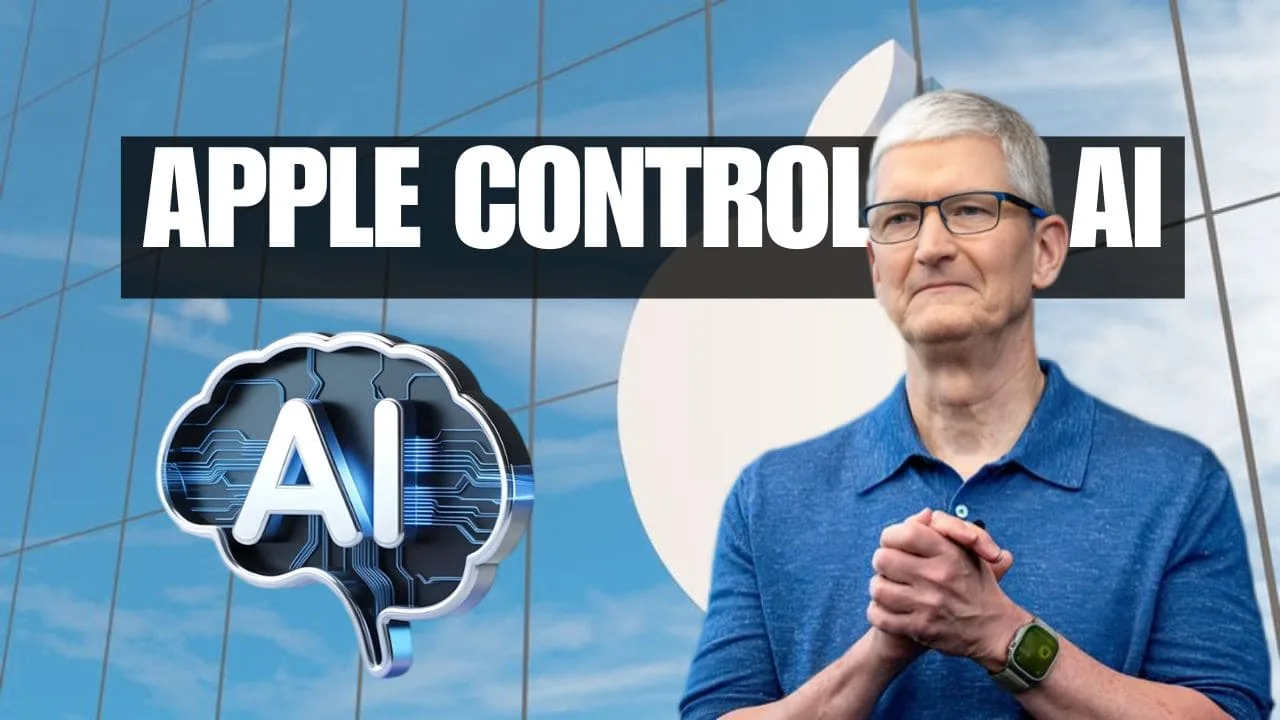
Apple’s Golden Cage: How Much Apple Intelligence AI Control 2026 is Too Much?
Enable AI-Powered Camera Features
iOS devices also have AI camera tools similar to Android including Smart HDR, Night Mode, Portrait Mode and Deep Fusion. Open Camera App → Go to Settings / Camera → Enable available AI new features. Night Mode and Deep Fusion automatically improve image quality based on lighting.
Enable AI Typing & Smart Suggestions
The iOS keyboard offers AI-powered predictive typing and smart suggestions. Settings → General → Keyboard → Enable Predictive, Smart Punctuation and Auto-Correction. Siri Suggestions also provide smart typing and app usage recommendations.
Trading Reality in AI Era 2026: Money-Making Machine or Mental Burden?
Explore AI in System & Apps
- Battery Optimization: Settings → Battery → Optimized Battery Charging
- AI Suggestions: Settings → Siri & Search → Suggestions in Apps
- Health AI: Health app provides AI-based sleep tracking and activity analysis
These features make your phone energy-efficient smarter and help simplify your daily routine.
Important
Enabling AI features on both Android and iOS is simple if you follow these steps. Google Assistant / Siri improvements AI camera tools predictive typing battery optimization and AI-enabled apps make your phone smarter, faster and more user-friendly.
Remember: AI features improve over time so keeping apps and system updates current is important to get the latest smart features and performance benefits.
40% OFF: All Digital Premium Services
- Lead Generation
- WP Web Designing
- Copywriting
- Ads Managements
- Advanced SEO
- See more 14+ digital premium services all over the world
More Pages Data: (How-To Guide) (AI Updates) (Contact Us) (Life Hacks)






Thanks for sharing. I read many of your blog posts, cool, your blog is very good.
Thanks for the appreciate….
Can you be more specific about the content of your article? After reading it, I still have some doubts. Hope you can help me.
Thank you for your feedback 😊
Sure, I’d be happy to clarify.
This article focuses on explaining the topic in a simple and practical way, especially for beginners. It covers the key updates, how they work, and how they may affect users in real-life usage. If you’re looking for something specific—such as a particular feature, limitation, use case, or comparison—please let me know. I’ll gladly explain it in more detail or update the article to make it clearer.
Your questions really help improve the content. Thanks for reading!
Thanks for sharing. I read many of your blog posts, cool, your blog is very good.
Thanks
I don’t think the title of your article matches the content lol. Just kidding, mainly because I had some doubts after reading the article.
Thank you for your sharing. I am worried that I lack creative ideas. It is your article that makes me full of hope. Thank you. But, I have a question, can you help me?
Yeah Sure
I don’t think the title of your article matches the content lol. Just kidding, mainly because I had some doubts after reading the article. https://www.binance.com/register?ref=IXBIAFVY
Thanks for sharing. I read many of your blog posts, cool, your blog is very good.
I don’t think the title of your article matches the content lol. Just kidding, mainly because I had some doubts after reading the article. https://www.binance.info/ph/register?ref=IU36GZC4
Thank you for your sharing. I am worried that I lack creative ideas. It is your article that makes me full of hope. Thank you. But, I have a question, can you help me?
Thanks for sharing. I read many of your blog posts, cool, your blog is very good. https://www.binance.com/cs/register?ref=OMM3XK51
Thanks for sharing. I read many of your blog posts, cool, your blog is very good.
Thank you for your sharing. I am worried that I lack creative ideas. It is your article that makes me full of hope. Thank you. But, I have a question, can you help me?
Thank you for your sharing. I am worried that I lack creative ideas. It is your article that makes me full of hope. Thank you. But, I have a question, can you help me? https://www.binance.com/tr/register?ref=MST5ZREF
Your point of view caught my eye and was very interesting. Thanks. I have a question for you. https://www.binance.info/bg/register?ref=V2H9AFPY
Thanks for sharing. I read many of your blog posts, cool, your blog is very good.
I don’t think the title of your article matches the content lol. Just kidding, mainly because I had some doubts after reading the article.
Thank you for your sharing. I am worried that I lack creative ideas. It is your article that makes me full of hope. Thank you. But, I have a question, can you help me?
Can you be more specific about the content of your article? After reading it, I still have some doubts. Hope you can help me. https://www.binance.com/bg/register?ref=V2H9AFPY
Can you be more specific about the content of your article? After reading it, I still have some doubts. Hope you can help me.
Can you be more specific about the content of your article? After reading it, I still have some doubts. Hope you can help me.
Your point of view caught my eye and was very interesting. Thanks. I have a question for you. https://www.binance.info/ur/register?ref=SZSSS70P
Your point of view caught my eye and was very interesting. Thanks. I have a question for you.
Thank you for your sharing. I am worried that I lack creative ideas. It is your article that makes me full of hope. Thank you. But, I have a question, can you help me? https://accounts.binance.info/id/register?ref=UM6SMJM3
Thank you for your sharing. I am worried that I lack creative ideas. It is your article that makes me full of hope. Thank you. But, I have a question, can you help me?
Can you be more specific about the content of your article? After reading it, I still have some doubts. Hope you can help me. https://accounts.binance.info/tr/register-person?ref=MST5ZREF
Thanks for sharing. I read many of your blog posts, cool, your blog is very good.
I don’t think the title of your article matches the content lol. Just kidding, mainly because I had some doubts after reading the article.
Thanks for sharing. I read many of your blog posts, cool, your blog is very good.
Your point of view caught my eye and was very interesting. Thanks. I have a question for you. https://www.binance.com/register?ref=IXBIAFVY
Can you be more specific about the content of your article? After reading it, I still have some doubts. Hope you can help me.
Can you be more specific about the content of your article? After reading it, I still have some doubts. Hope you can help me.
Your point of view caught my eye and was very interesting. Thanks. I have a question for you.
Your point of view caught my eye and was very interesting. Thanks. I have a question for you. https://www.binance.com/register?ref=IHJUI7TF
Thanks for sharing. I read many of your blog posts, cool, your blog is very good.
Your point of view caught my eye and was very interesting. Thanks. I have a question for you.
Thank you for your sharing. I am worried that I lack creative ideas. It is your article that makes me full of hope. Thank you. But, I have a question, can you help me? https://accounts.binance.com/register-person?ref=IXBIAFVY
I don’t think the title of your article matches the content lol. Just kidding, mainly because I had some doubts after reading the article. https://accounts.binance.com/fr-AF/register-person?ref=JHQQKNKN
Thanks for sharing. I read many of your blog posts, cool, your blog is very good. https://accounts.binance.com/register-person?ref=IXBIAFVY
Thanks for sharing. I read many of your blog posts, cool, your blog is very good.
Can you be more specific about the content of your article? After reading it, I still have some doubts. Hope you can help me. https://www.binance.com/register?ref=QCGZMHR6
I don’t think the title of your article matches the content lol. Just kidding, mainly because I had some doubts after reading the article. https://accounts.binance.com/register-person?ref=JW3W4Y3A
Your article helped me a lot, is there any more related content? Thanks!
Your article helped me a lot, is there any more related content? Thanks!
Thanks for sharing. I read many of your blog posts, cool, your blog is very good. https://accounts.binance.com/register-person?ref=IHJUI7TF
I don’t think the title of your article matches the content lol. Just kidding, mainly because I had some doubts after reading the article.
Your article helped me a lot, is there any more related content? Thanks!
Thank you for your sharing. I am worried that I lack creative ideas. It is your article that makes me full of hope. Thank you. But, I have a question, can you help me?
Your article helped me a lot, is there any more related content? Thanks!
Thanks for sharing. I read many of your blog posts, cool, your blog is very good. https://www.binance.info/register?ref=QCGZMHR6
Thank you for your sharing. I am worried that I lack creative ideas. It is your article that makes me full of hope. Thank you. But, I have a question, can you help me?
Can you be more specific about the content of your article? After reading it, I still have some doubts. Hope you can help me.
Your article helped me a lot, is there any more related content? Thanks! https://accounts.binance.info/es/register?ref=RQUR4BEO
I don’t think the title of your article matches the content lol. Just kidding, mainly because I had some doubts after reading the article.
Your point of view caught my eye and was very interesting. Thanks. I have a question for you.
Can you be more specific about the content of your article? After reading it, I still have some doubts. Hope you can help me.
Thanks for sharing. I read many of your blog posts, cool, your blog is very good.
Your article helped me a lot, is there any more related content? Thanks!
Your article helped me a lot, is there any more related content? Thanks!
Thanks for sharing. I read many of your blog posts, cool, your blog is very good. https://www.binance.info/register?ref=IHJUI7TF
I don’t think the title of your article matches the content lol. Just kidding, mainly because I had some doubts after reading the article.
Your point of view caught my eye and was very interesting. Thanks. I have a question for you. https://accounts.binance.info/register/person?ref=JW3W4Y3A
Thanks for sharing. I read many of your blog posts, cool, your blog is very good. https://accounts.binance.bh/cs/register/person?ref=OMM3XK51
Thank you for your sharing. I am worried that I lack creative ideas. It is your article that makes me full of hope. Thank you. But, I have a question, can you help me?
I don’t think the title of your article matches the content lol. Just kidding, mainly because I had some doubts after reading the article. https://www.binance.com/register?ref=IXBIAFVY
Thanks for sharing. I read many of your blog posts, cool, your blog is very good.
Thank you for your sharing. I am worried that I lack creative ideas. It is your article that makes me full of hope. Thank you. But, I have a question, can you help me?
Can you be more specific about the content of your article? After reading it, I still have some doubts. Hope you can help me. https://accounts.binance.com/register/person?ref=MBLCVVZG